How to protect images on WordPress (Pixel Sentinel Image Protection plugin)
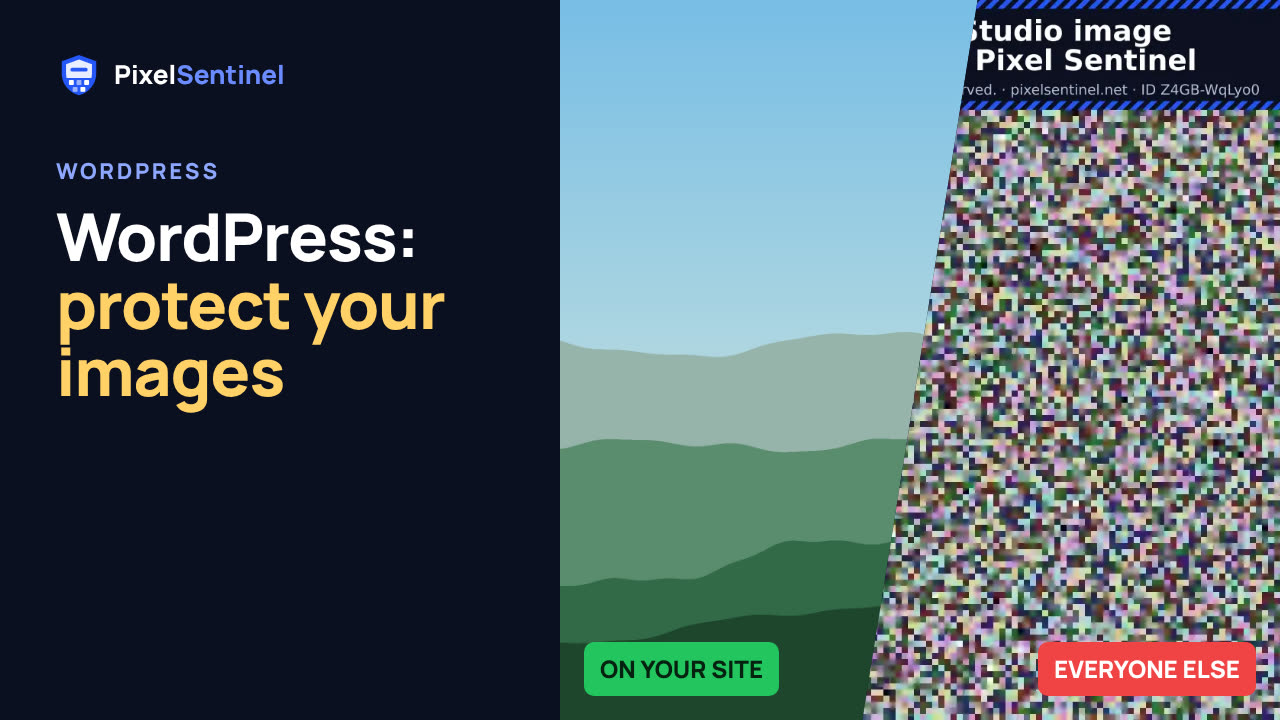
Narrated by an AI voice, with captions. Plays from YouTube when you press play. Watch on YouTube · More on our channel
Connect WordPress to your Pixel Sentinel account with the Pixel Sentinel Image Protection plugin: no code to paste. Create an API client in the dashboard, paste it into Settings > Pixel Sentinel, approve your site, and add Protected image blocks to your pages.
The plugin is waiting for its WordPress.org directory listing. Until then, email support@pixelsentinel.net and we'll send it to you.
Note: pictures in the Media Library, featured images and galleries are served by WordPress itself and aren't protected. Use Protected image blocks (or the [pixelsentinel] shortcode) for the pictures that matter.
Transcript
0:03 The plugin
If your site runs on WordPress, the Pixel Sentinel Image Protection plugin connects it to your account, so there is no code to paste. The plugin is waiting for its listing in the WordPress plugin directory. Until then, email support@pixelsentinel.net, and we'll send it to you.
0:28 Create an API client
In your Pixel Sentinel dashboard, open the API tab and create an API client. Name it after your site. Leave Read the account summary and List images ticked, and also tick Replace the approved sites list, so the plugin can approve your site for you. Then click Create.
0:47 Copy the ID and secret
Copy the client ID and the secret. The secret is only shown once.
0:52 Connect WordPress
In WordPress, go to Settings, Pixel Sentinel. Paste both, and save.
1:00 Approve your site
The plugin checks whether this site is on your approved list. If it isn't yet, click Approve.
1:08 Add a Protected image block
Now edit a page, and add a Protected image block. Pick a picture from your Pixel Sentinel library, and add alt text for people who use screen readers.
1:29 Publish
The editor shows the scrambled copy. That is expected: the editor doesn't use your plan's views. Click Publish.
1:40 The published page
Open the published page. Your visitors see the real picture, while downloads, other sites and bots get the scrambled copy.
1:48 Media Library and shortcode
One thing to know. Pictures in the Media Library, featured images and galleries are served by WordPress itself, so they aren't protected. Use Protected image blocks for the pictures that matter, and remove the originals you no longer need. In the classic editor or a page builder, use the shortcode instead. Next: online stores and marketplaces.
More videos
 Stop people saving your images: Pixel Sentinel in 90 seconds1:27
 Pixel Sentinel setup: sign up, add your site and protect your first images2:55
 How to protect images on your website from download (2 lines of code)1:35
 How to protect product photos on Shopify, Etsy, Amazon and eBay1:47
 Post on Instagram, Facebook and Pinterest without giving away your original1:30
 How to find copies of your photos and art on the web (Pixel Sentinel patrols)1:51
 Pixel Sentinel API: upload images and send buyers download links from your server1:41
 Where are my images? Free report finds copies of the pictures on your website2:07